

Use the following guide to set up a Smart System that consists of a Gateway, at least one thermostat, at least one wireless StatLink module, and a Wireless Relay (RX1) for boiler switching.
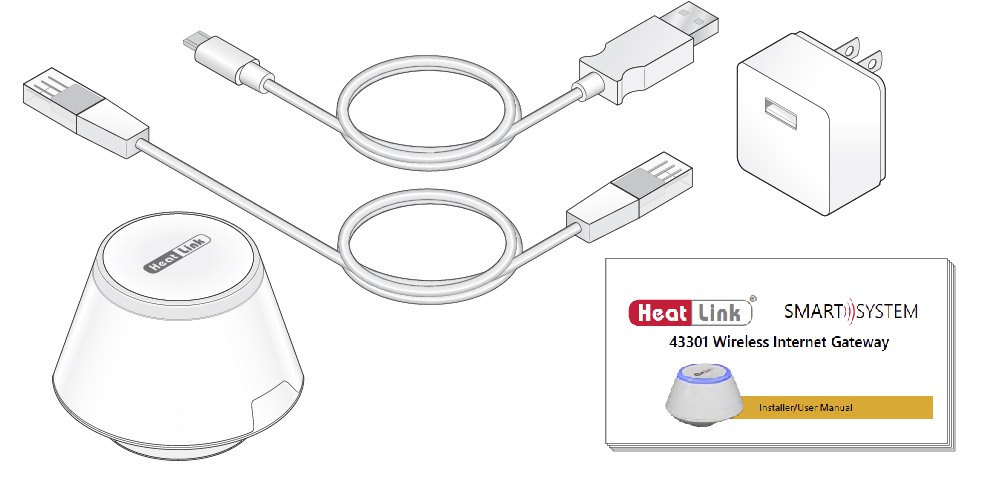
43301 Wireless Gateway included parts:
- Wireless Gateway.
- Mini USB to Micro USB cable.
- USB power adapter.
- Ethernet cable.
- Printed instructions.
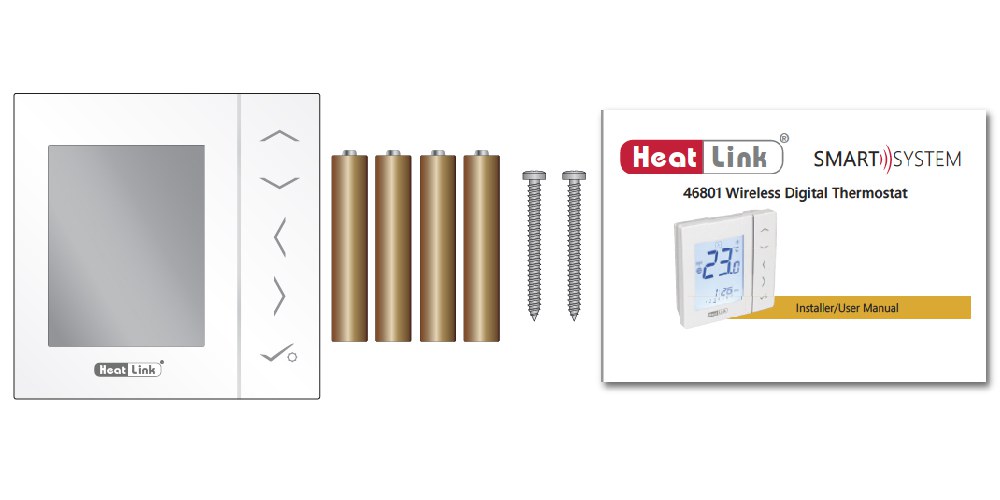
46801 Wireless Thermostat included parts:
- Wireless Thermostat
- 4 x AAA batteries
- Mounting screws
- Printed instructions
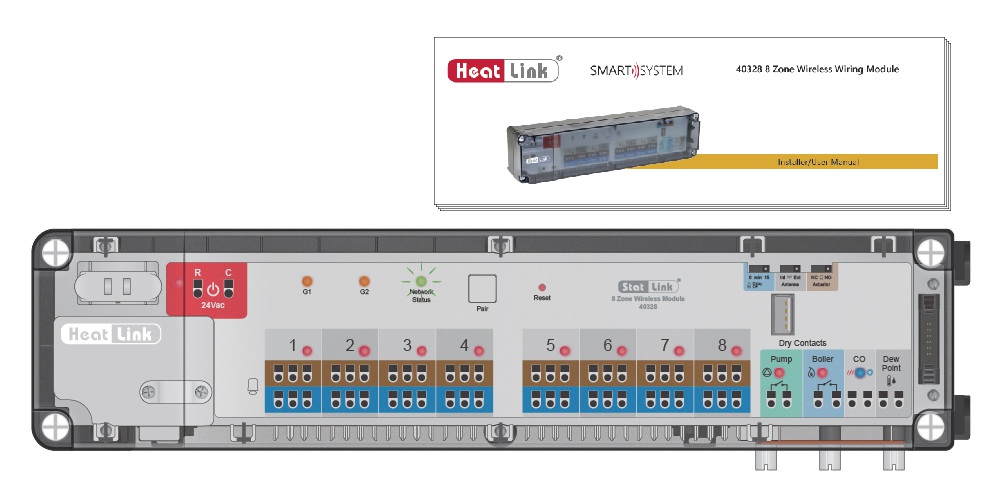
40328 8 Zone Wireless Module included parts:
- Wireless StatLink module with cover
- Printed instructions
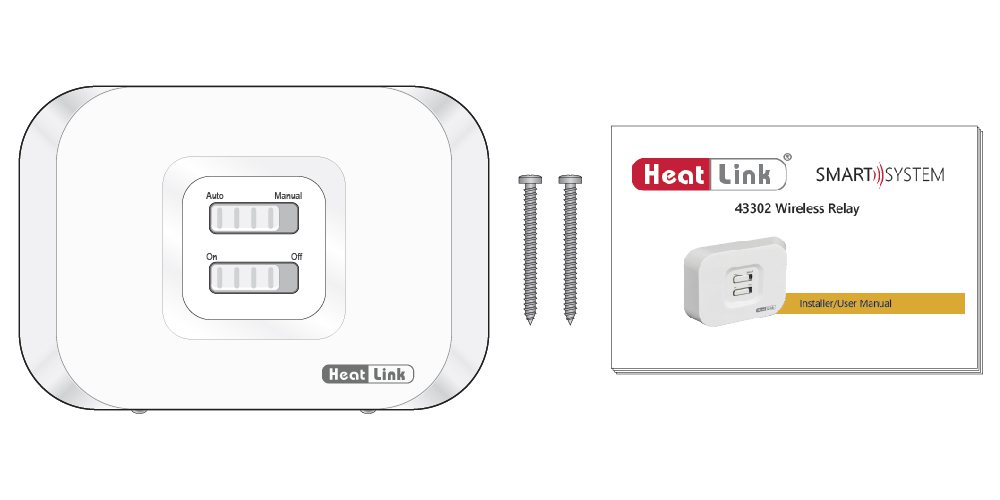
43302 Wireless Relay included parts:
- Wireless relay
- Printed instructions
- Mounting screws
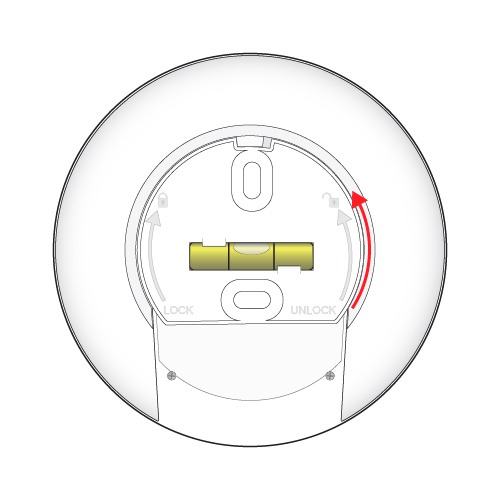
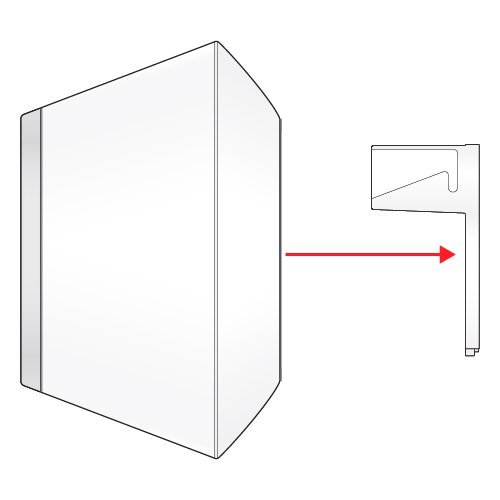
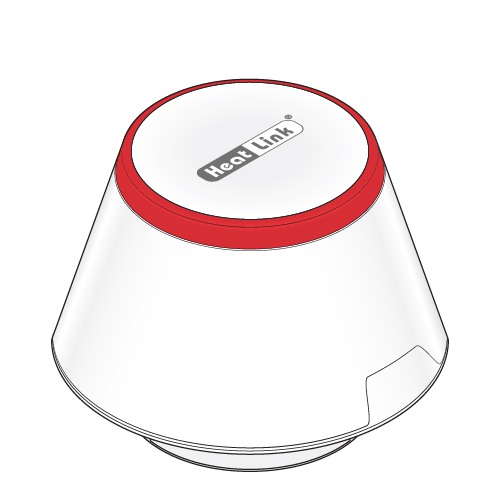
- Remove the port cover from the bottom of the Gateway by twisting 1/8 of a turn counter-clockwise and pulling out.
Install Power – Offline Use
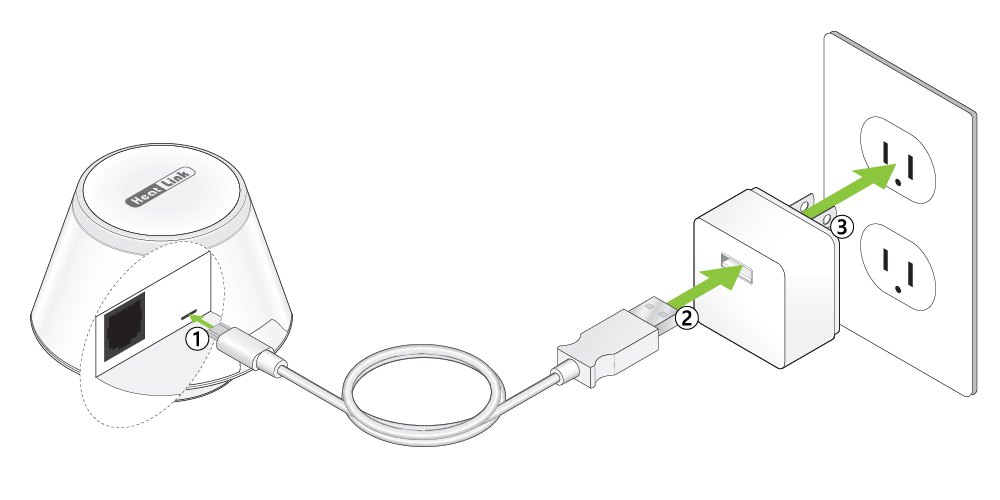
- Plug the micro USB end of the power cable into the gateway.
- Plug the USB end of the power cable into the plug adapter.
- Plug the adapter into the wall outlet.
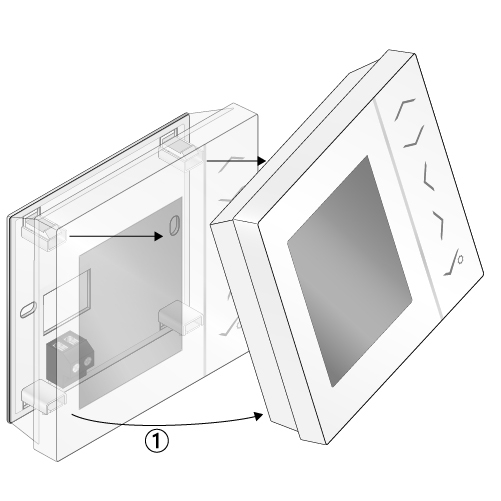
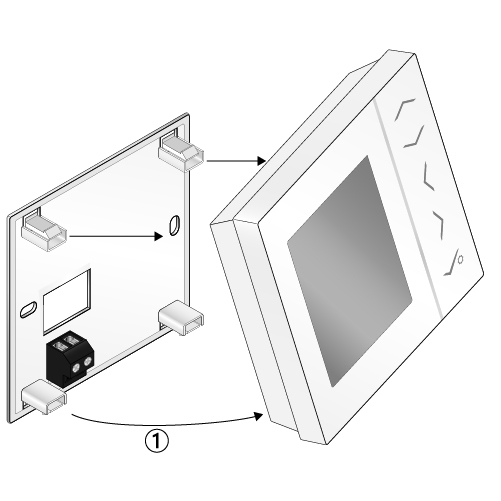
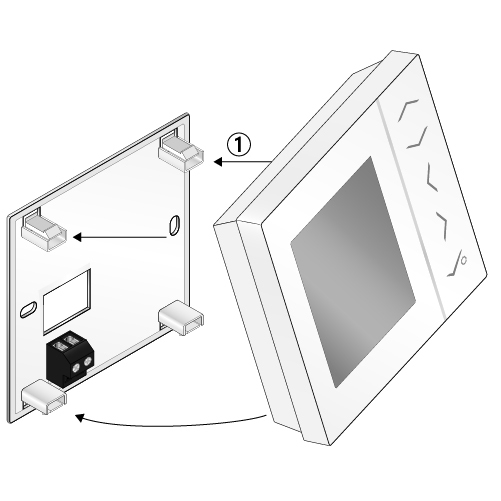
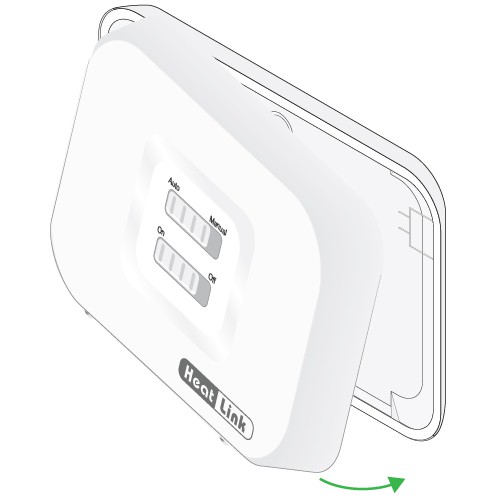
- Remove thermostat from mounting plate – pull out from bottom.
- Use the included screws to mount the backplate to the wall in the desired location.
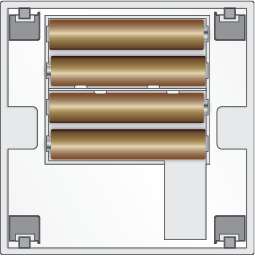
- Install the included 4 AAA batteries into the thermostat.
- The thermostat will run through the start up sequence.
- The thermostat is now ready for pairing.
Mount the Wireless StatLink Module using DIN Rail
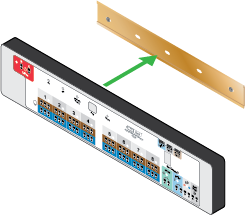
- Attach the DIN rail to the wall or a backing board in an appropriate location, ensuring it is level.
- Clip the StatLink onto the DIN rail.
Mount the Wireless StatLink Module to the Wall
- Remove the terminal block from the casing by removing the screws [as marked]. Then use the mounting screws to attach the casing to the wall or backing board, ensuring it is level [note the mounting holes].
- Replace the terminal block into the casing, securing all screws.
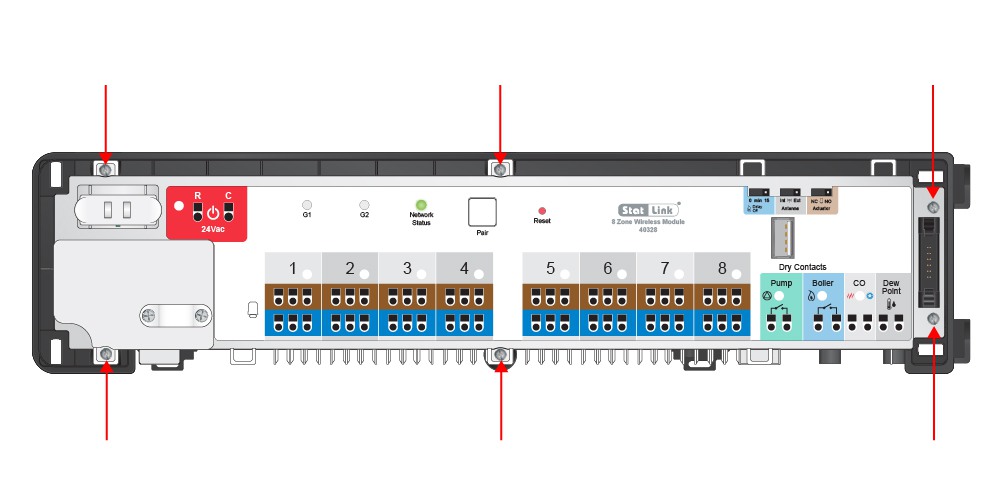
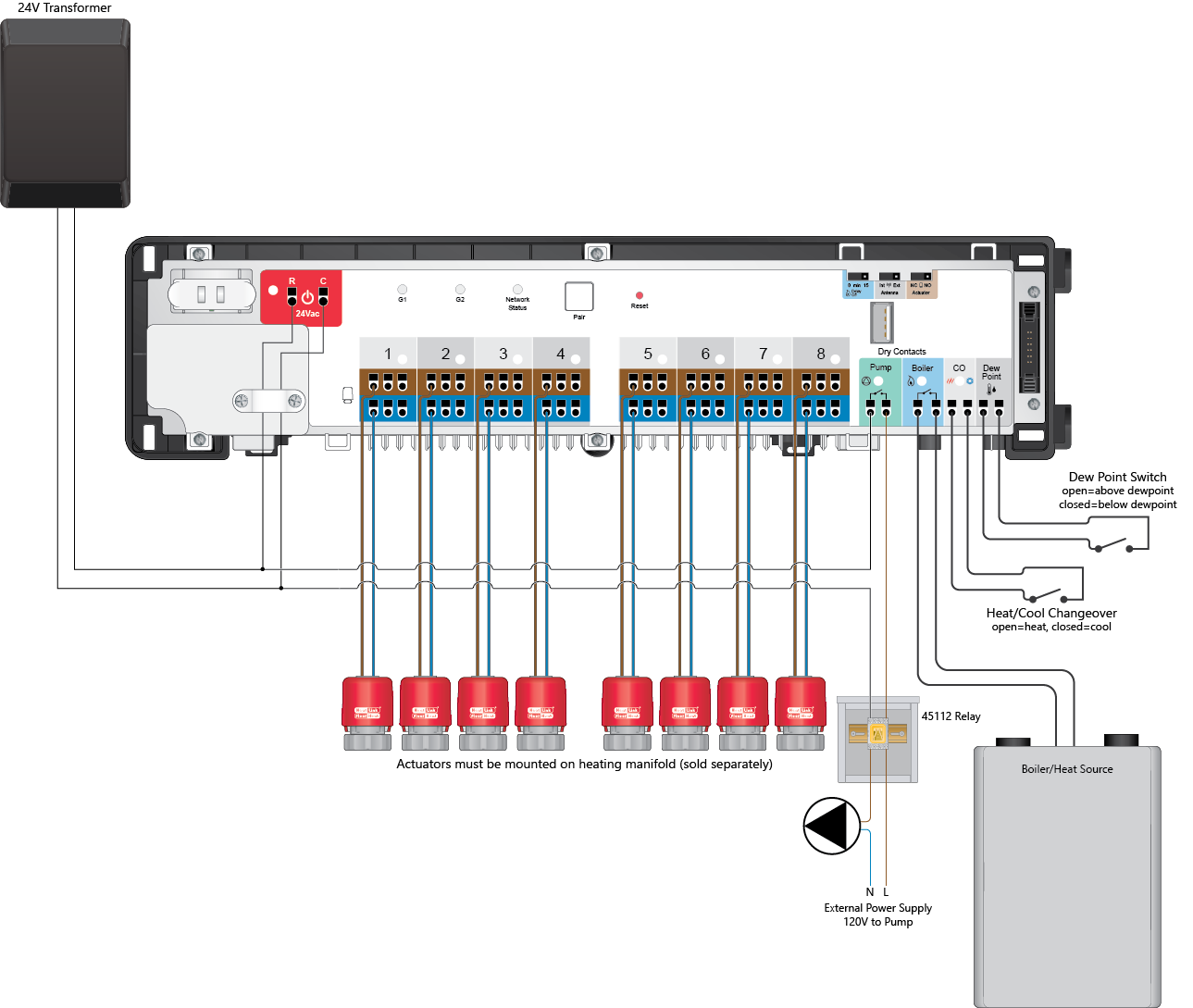
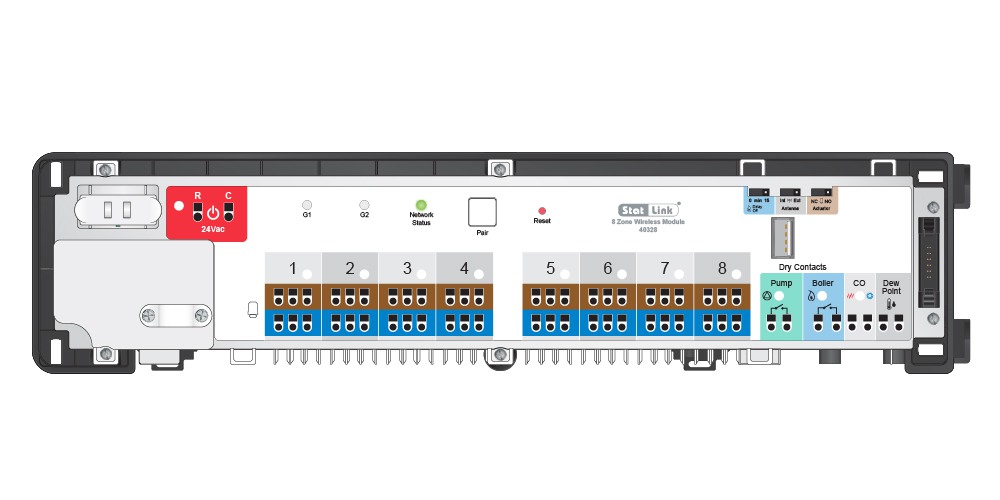
Though the StatLink communicates wirelessly with the thermostats, it does require hard-wiring to any zone actuators, the heat source, pump(s), dew sensors, and changeover valves.
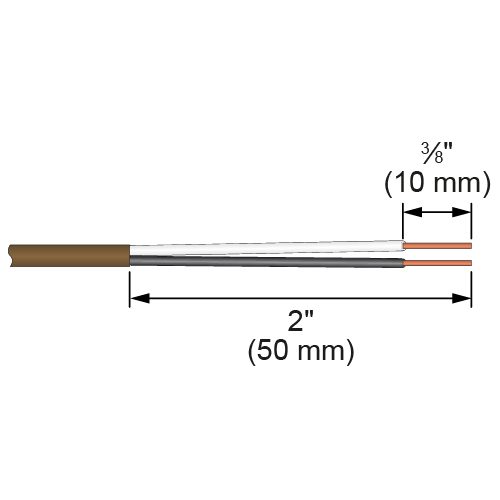
- Wire the actuators to the appropriate zone terminals (see manufacturer instructions for actuator installation procedure).
- Clip the wires into the strain reliefs.
- Wire the heat demand, pump, and optional dew point switch and heat/cool changeover.
- Wire the 24VAC power source (not included)
Installation – Wireless relay
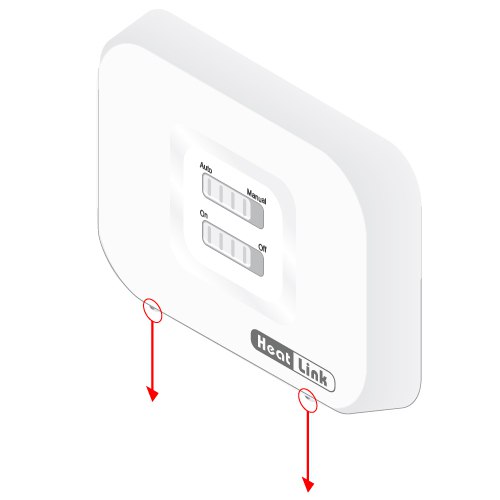
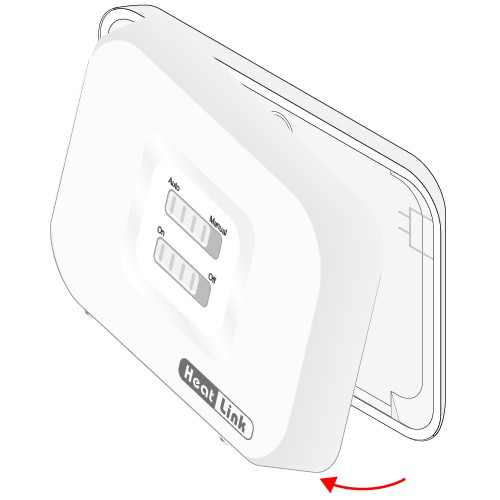
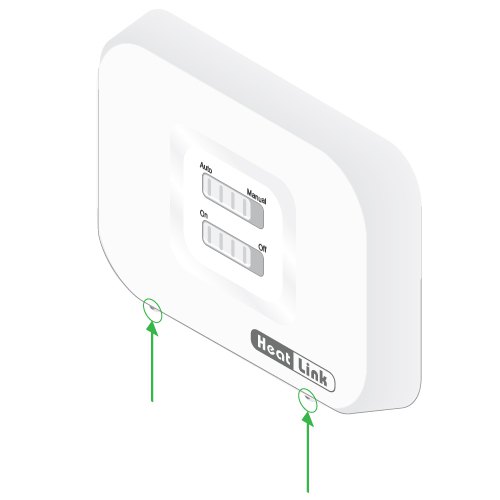
- Remove the screws at the bottom.
- Lift off the top half of the relay.
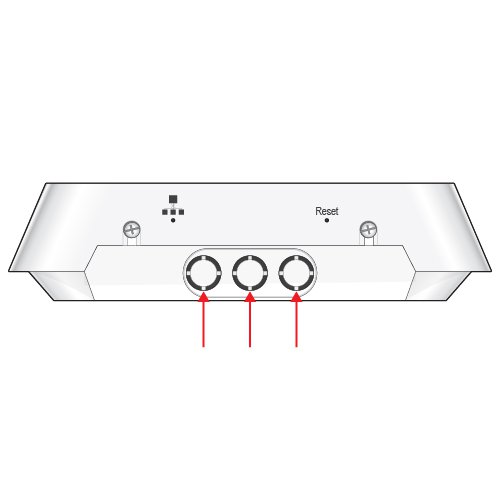
- Remove the plastic knockouts on the bottom of the unit as necessary using wire snips.
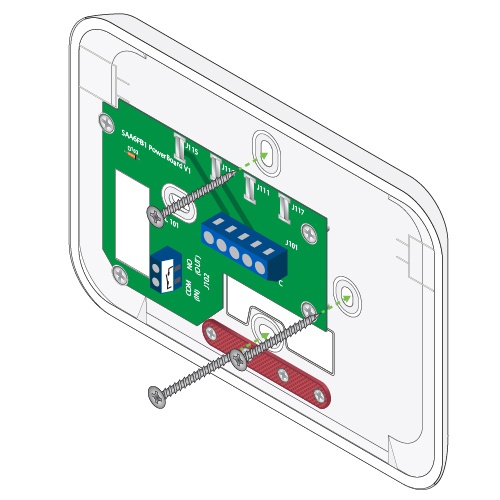
- Mount to the wall or backing board in the desired location.
Relay Wiring – Boiler Switching (RX1)
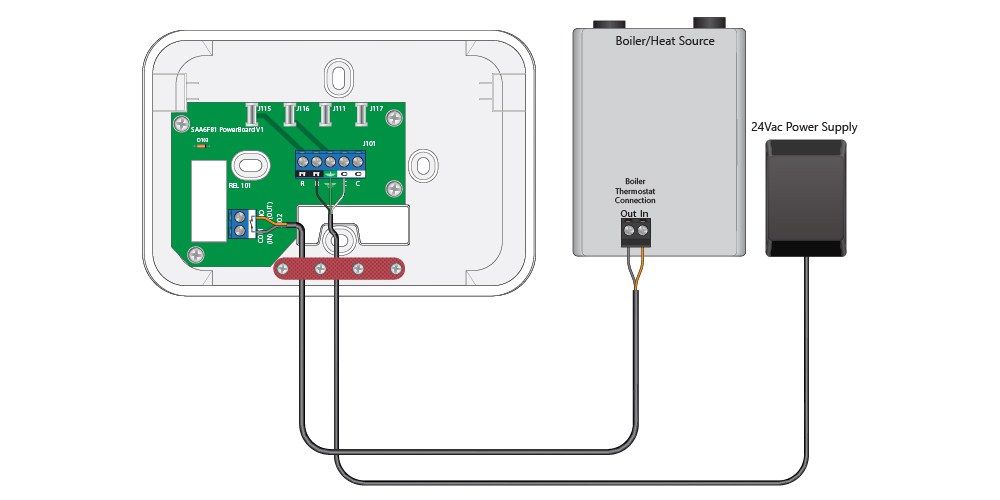
- Wire the relay for heat demand as per wiring diagram. Refer to boiler wiring diagram for details.
- Secure the wiring with the strain relief.
- Replace the cover
- Tighten the screws
Follow these procedures for pairing the devices in your Smart System. Depending on the complexity of your heating system, it is recommended that you pair each device at the same time in a single room, labeling each thermostat, WVA, and StatLink to ensure that when they are installed they are installed in the correct location.
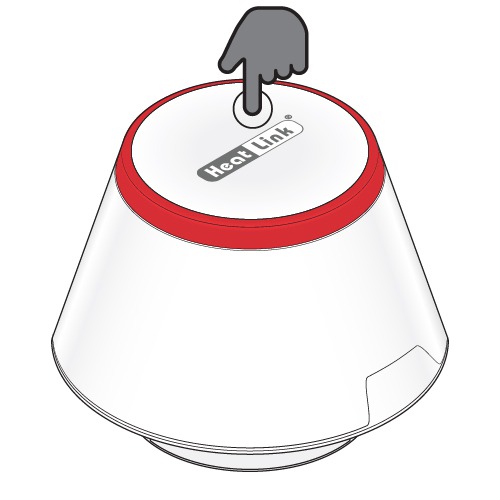
- Press the multi button on top of the gateway for ~5 seconds, or until the LED flashes red.
- Release the multi button.
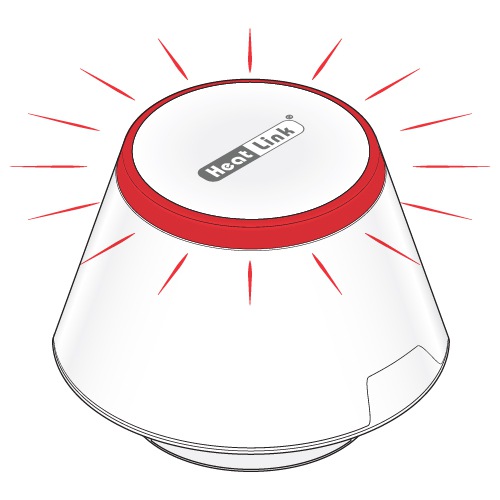
- Plug in the relay.
- The LED will flash red, indicating it is ready to be paired.
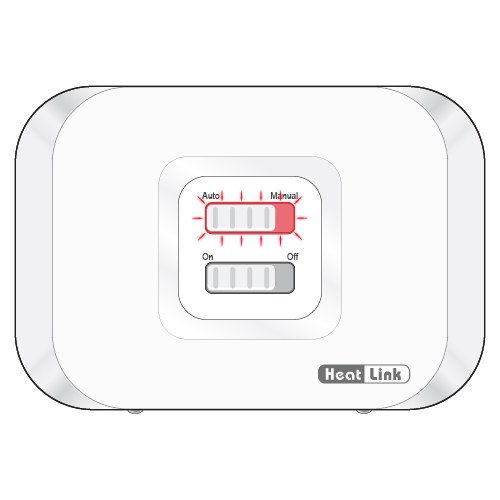
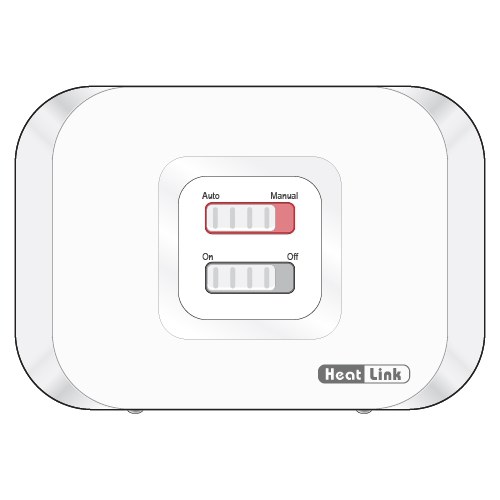
- The Statlink module is ready to pair as soon as power is applied to the module. It will pair automatically once the Gateway has been put into pair mode.
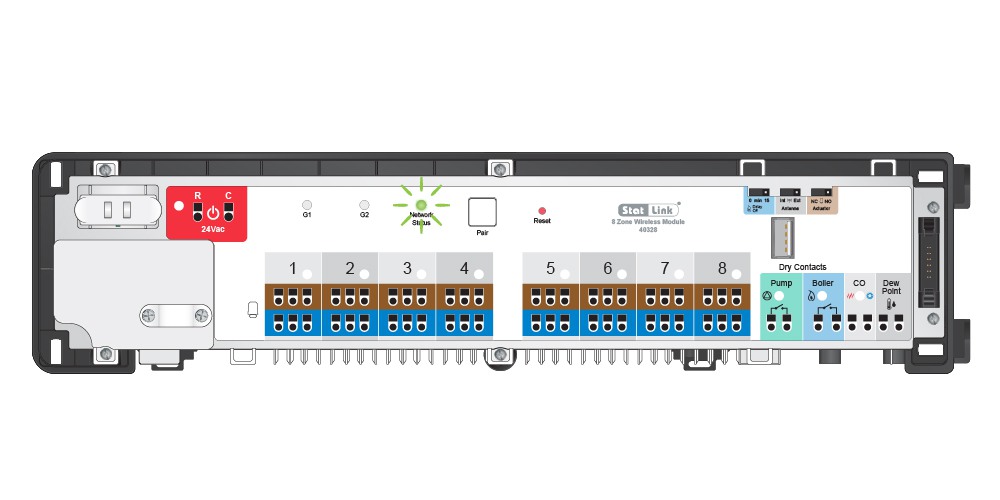
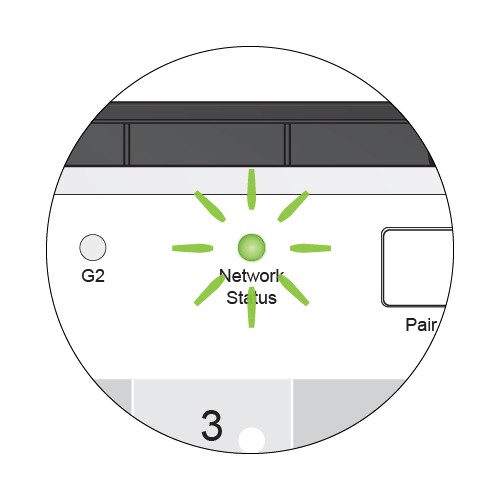
To configure for Underfloor heating:
- Use the Left/Right arrow keys to navigate to the USE menu.
- Press [check] to accept.
- The thermostat is recognized by the Zigbee network.
- Press to accept.
- Use the Up/Down arrows to select the Wiring Center
- Press to accept.
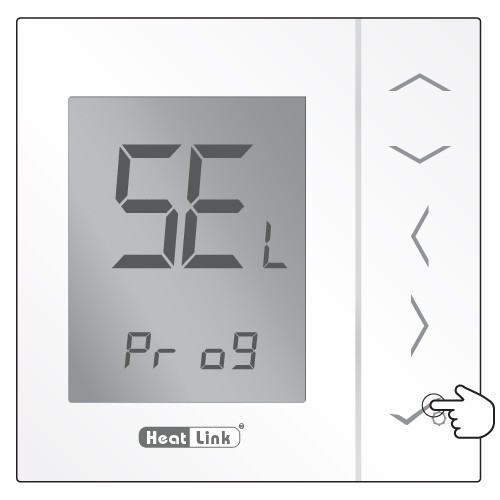
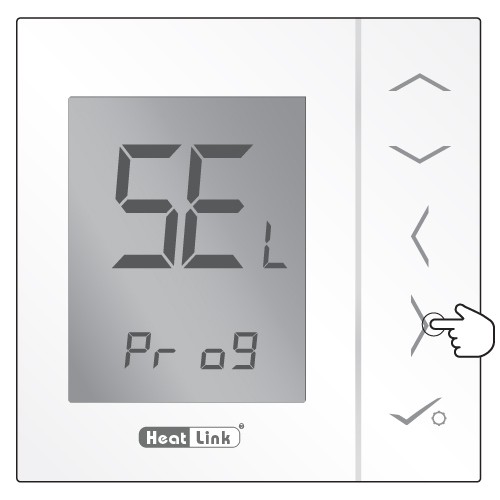
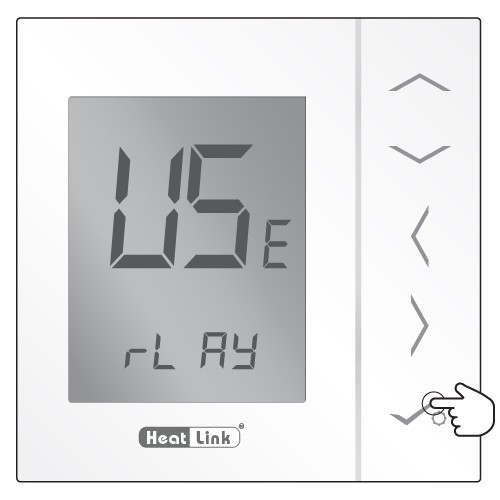
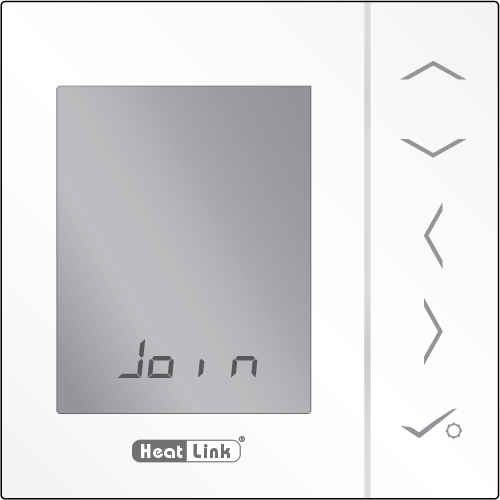
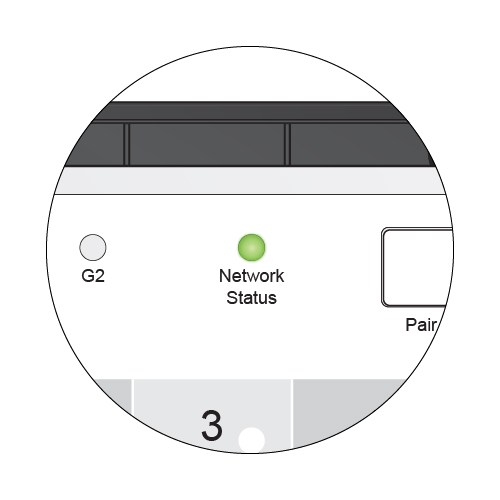
- The Network Status LED will turn solid green once it is paired with the system.
- Plug in the relay.
- The LED will flash red, indicating it is ready to be paired.
For instructions on setting up the thermostat programming click here.
Click here for Troubleshooting
Comments are closed, but trackbacks and pingbacks are open.